Maps
The Maps page allows you to create and edit Maps.
Create Map
To create a Map, click on “Manage Maps” in the left menu.

Click Add New Map button

In the Basic Information section, give your Map a name and description.
In the QWC2 Configuration section, select the Tenant and Theme (QGIS Project)

In the Thumbnail section, select a thumbnail (or use the default thumbnail).
In the Security section, select if Map is Public or Group(s) that should have access
Click Create Map

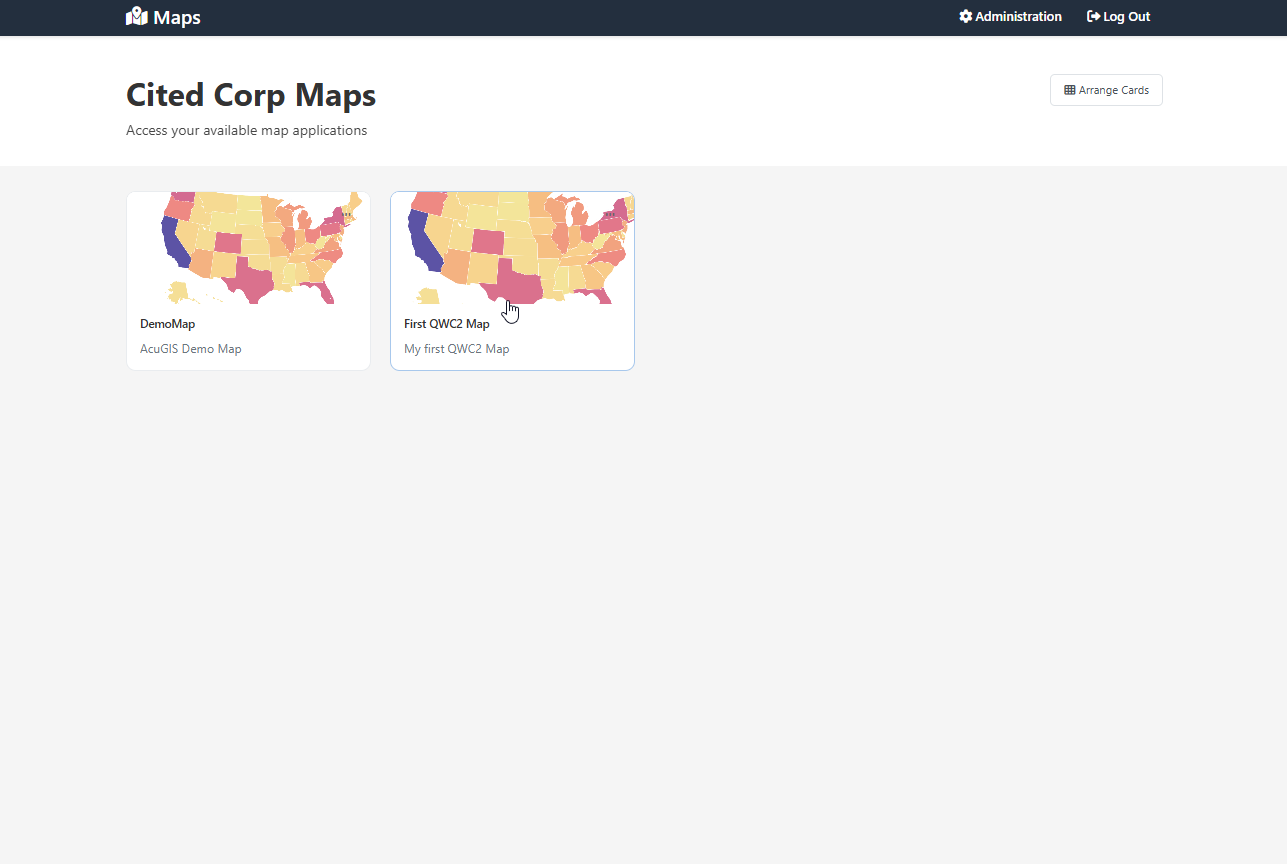
Your Map has now been added to the Dashboard
About Security
Maps can be Private or Public.
The Security section is where you assign permissions to your map.
Remember: Security is Group based, so any users belonging to the Group will be able to view the map.
Private maps can be viewed by the user logging into your map portal.
For example, since we gave access to the Group containing user Jane Doe, when she logs in she will see only the two maps she has permissions to all Maps for the Group(s) she is a member of.
You can also tick the “Public” box to make your map public.
If your map is “Public”, it is accessible via direct link by anyone.